Cancer Complexity Knowledge Portal Docs
Breadcrumbs

Use Search, Filters, and Charts


Within the Cancer Complexity Knowledge Portal (CCKP), the Explore Module provides three primary methods to find research resources: 

  1. Search 

  2. Filter

  3. Charts

These tools help users find relevant grants, datasets, publications, and research tools that match their specific focus.

Follow these steps to search grants, datasets, publications, research tools and profiles:
Screenshot 2025-03-19 at 11.12.26 PM.png

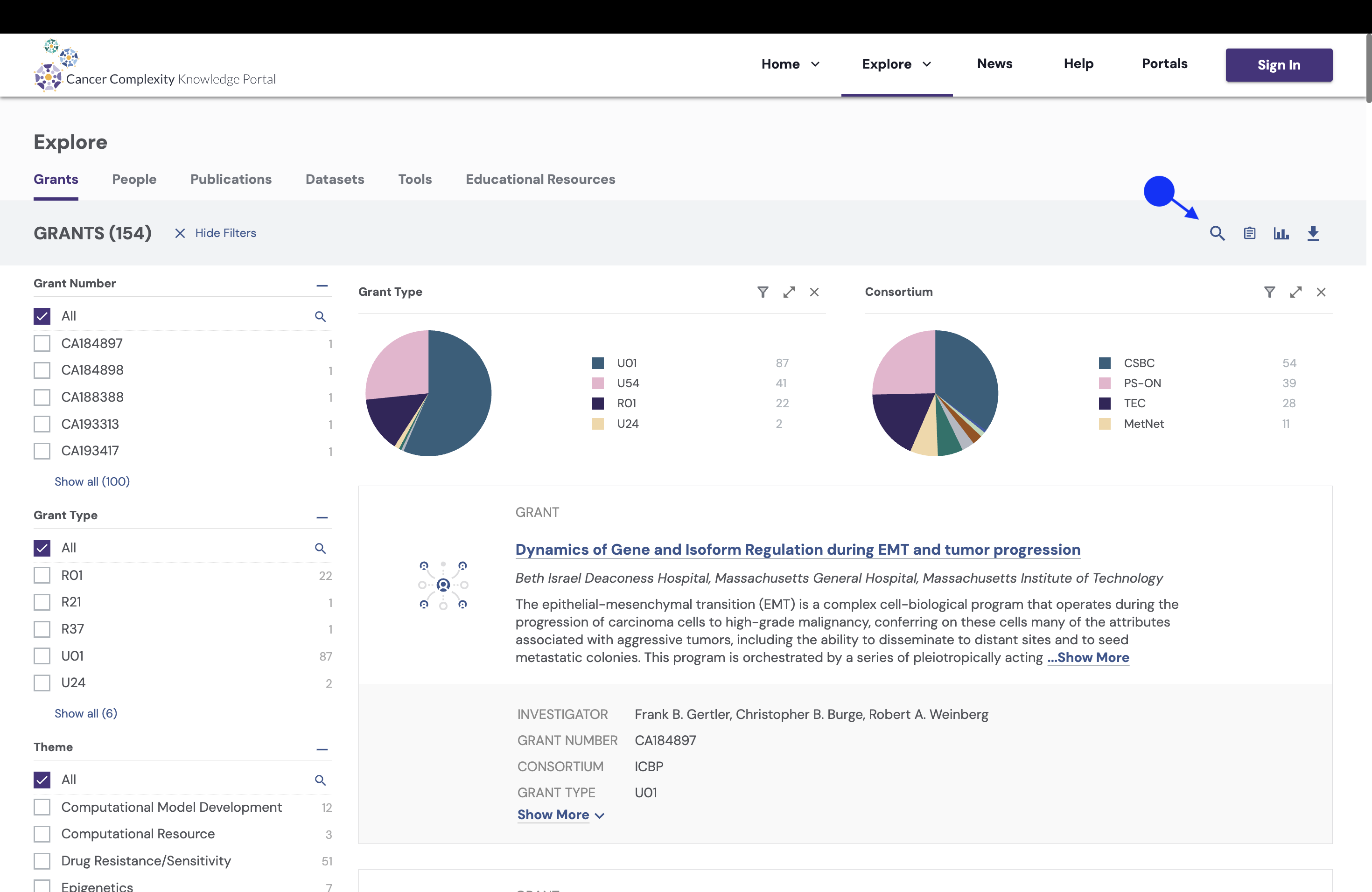
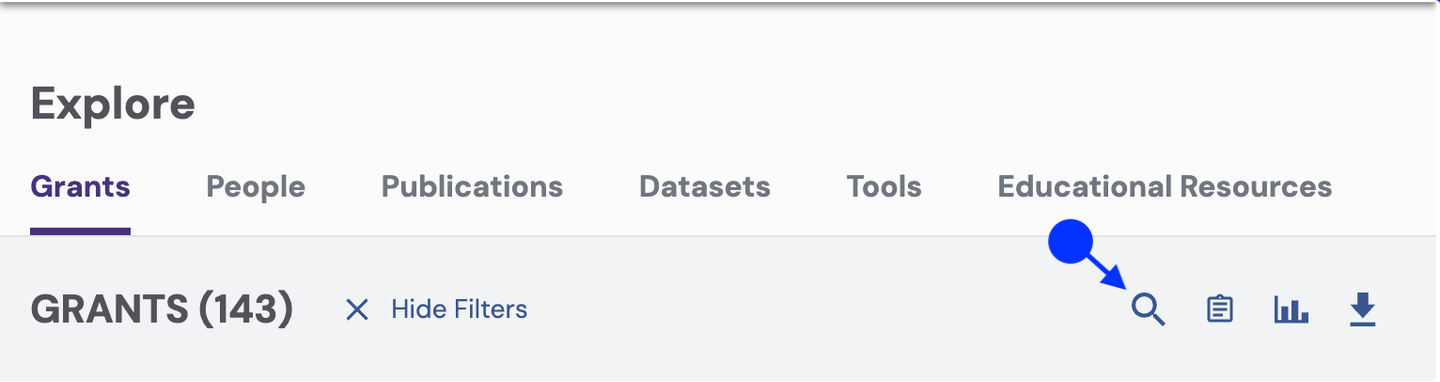
Step 1: Locate the Search Bar near the top-right, marked by a magnifying glass icon.
9823e133-ffdd-410e-ac4f-01f0bc2d5924.png

Step 2: Type a keyword relevant to your search.

AD_4nXcbgrAQFAq_O_j8biWvqNcav-I8OhqZ8ZAGDko3u3foSE5-gtHgM0rNwhSZg1qZsxH5IUgovJDFcJd1YU6aprBKPUJfOEmUyTL1MZn3T2_GDbe5TfCwobM1WYOCOgR9FTjqZ9WHpg?key=BXXE4yBplNqGDEObqX-_qYeY

a. The search filter is automatically applied.

AD_4nXdh7nx2yXCCfQp9uAfgKBtpWS8qc-yEHFYCXVZ_utKRvgZewmsansN-9vezV_swV6ggEl_5CN_rLfb6PCIK4RVk2uFn3HSsFcGOs5YQcWbUFXw8UGQxBX6mvUi7fRGDofjPJcAV?key=BXXE4yBplNqGDEObqX-_qYeY

b. Apply additional filters with new search terms. The system combines keywords to narrow the results.

AD_4nXdIbyHk5hhcOtntghYvaJQK6XflyXT0LwSpL5YdknwX1WHqi-LD4aOHbOB4As7U22D1a5OuHbCfqy3jJb2HmFpuz7f1vokXmLB8ipxNT5Uuau_UyhwisJhYhYcN61jo_yx7MygVoA?key=BXXE4yBplNqGDEObqX-_qYeY

c. To start a new search, remove the current filter by clicking the “X” next to it before entering a new query.

Step 3: Click on any result to open a detailed information page.

AD_4nXeFkeDtQkfqmvknf45CseLpfA6nfO1qGfhEt7mhcznmXRoowApPqHaGh2bk96Kow7vwjbamJQjNqAYxIlQTrpXiZMESPKM-XGZu8MlRgi-SwsJXCzj_lk4qBUnWhxG7ieCBOA0B?key=BXXE4yBplNqGDEObqX-_qYeY

Filters

Filters narrow search results for grants, datasets, publications, tools, researchers, and educational resources based on specific criteria. Follow these steps to apply filters:

AD_4nXeTfWWqDnAuMV3B1frQKDYu4pqU9NgPD23_vLJnXZ8t2_-WkrjtttUgkx2j5L-qkAR6oih77HRes3S9h-yqIDgQqH8WxWsxduSw1-1Ixfkvz2udseWNHEAof7mI1LHh_ceLskQE?key=BXXE4yBplNqGDEObqX-_qYeY
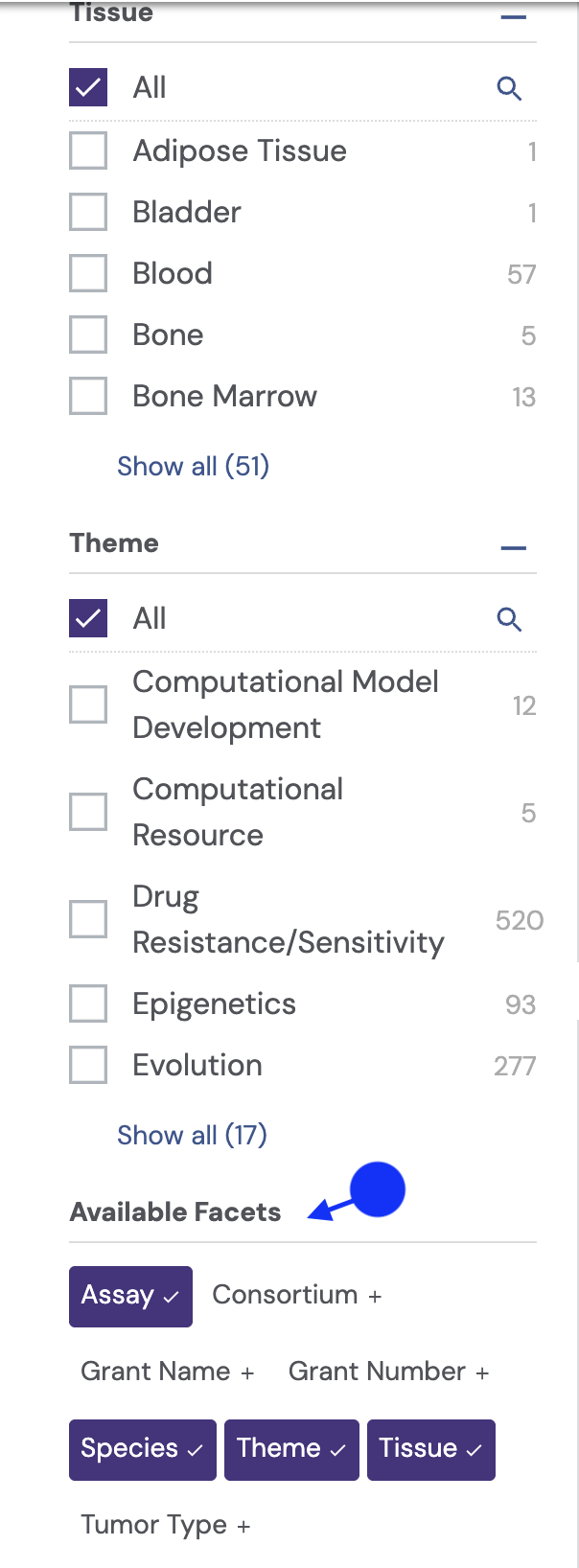
  1. Accessing the Filter Panel

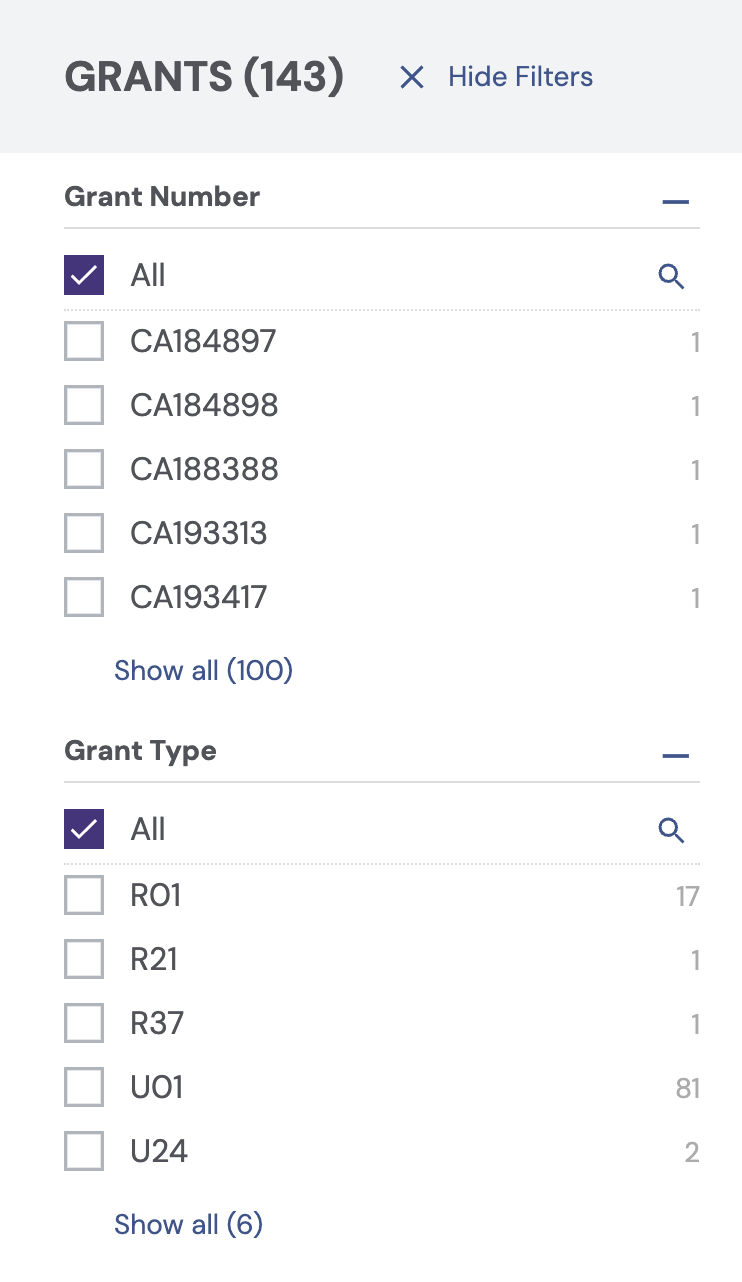
    1. Locate the Filters Panel on the left side of the page.

    2. Filters vary based on the selected category of resources (e.g., grants, datasets, tools, or publications).

Screenshot 2025-03-13 at 12.23.44 PM.png
Screenshot 2025-03-13 at 12.30.14 PM.png
Screenshot 2025-03-13 at 12.30.37 PM.png
  1. Applying a Filter

    1. Click on a filter category.

      Screenshot 2025-03-14 at 12.00.04 PM.png
    2. Scroll down for additional filters.

      Screenshot 2025-03-14 at 12.05.28 PM.png
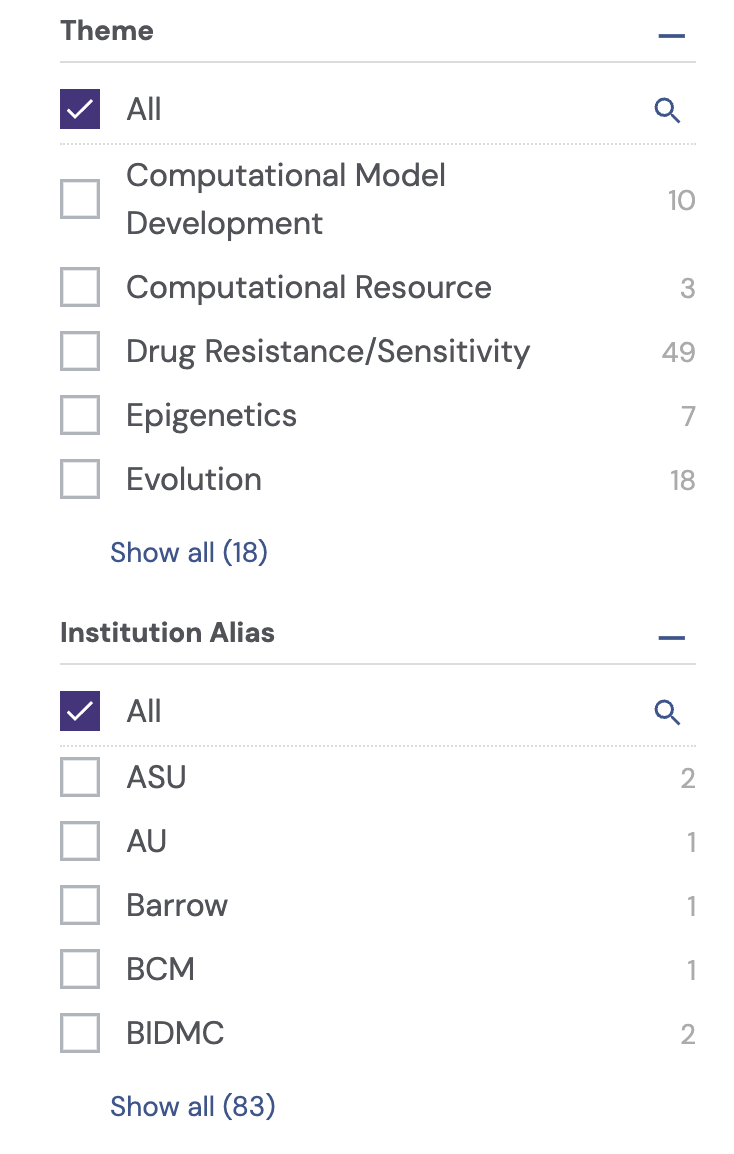
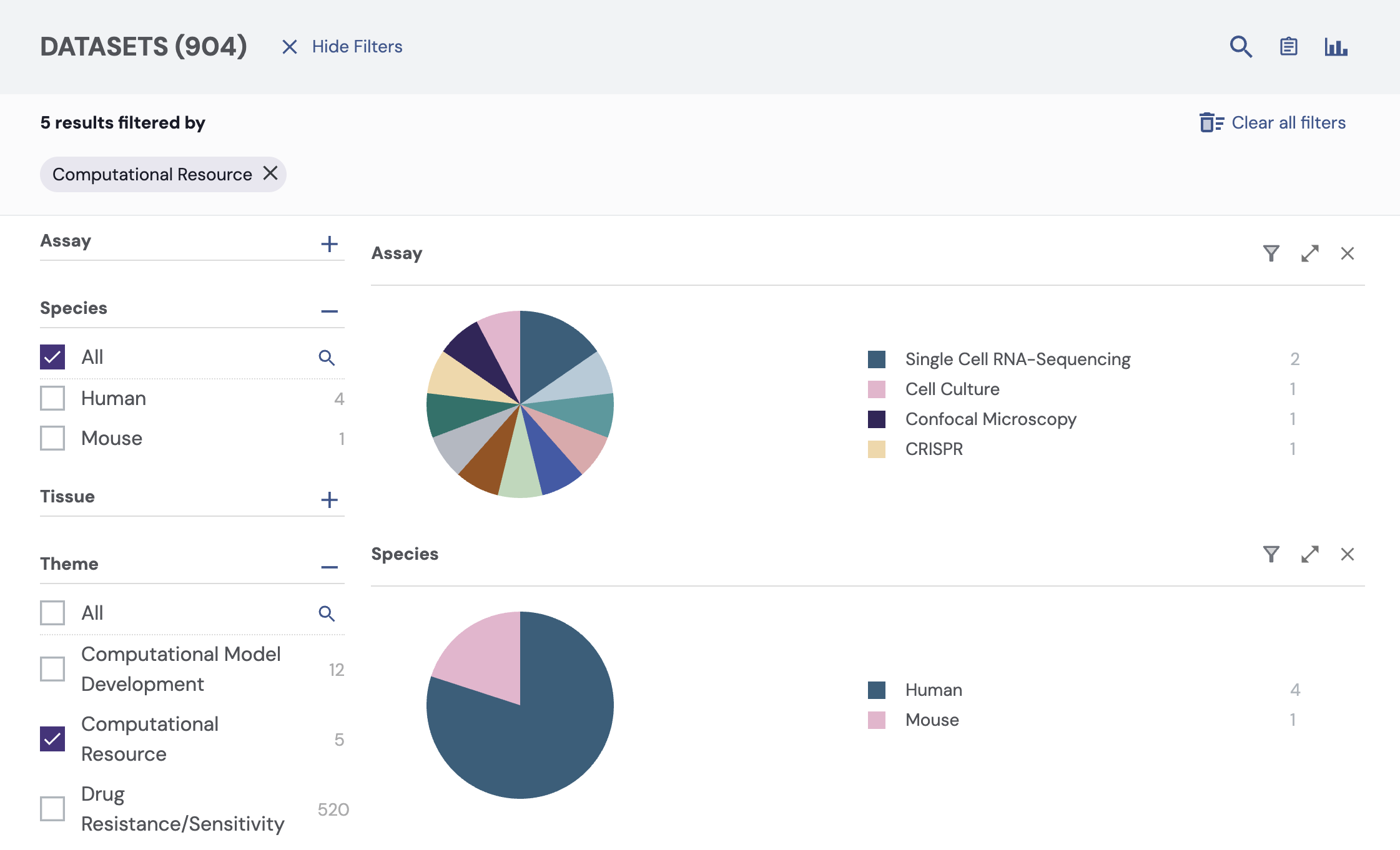
    3. Select the desired filter, such as “Theme.”

    4. Choose the desired option(s) from the list.
      Screenshot 2025-03-14 at 12.08.56 PM.png
    5. Results update automatically.

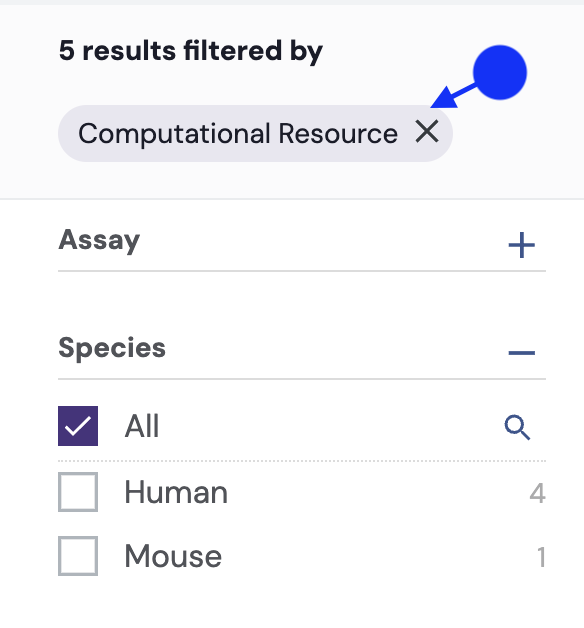
    6. Selected filters appear in the top-left corner of the results panel.

    7. To remove a filter, click its “X”.

      Screenshot 2025-03-14 at 12.10.18 PM.png
  2. Filter Tools Example

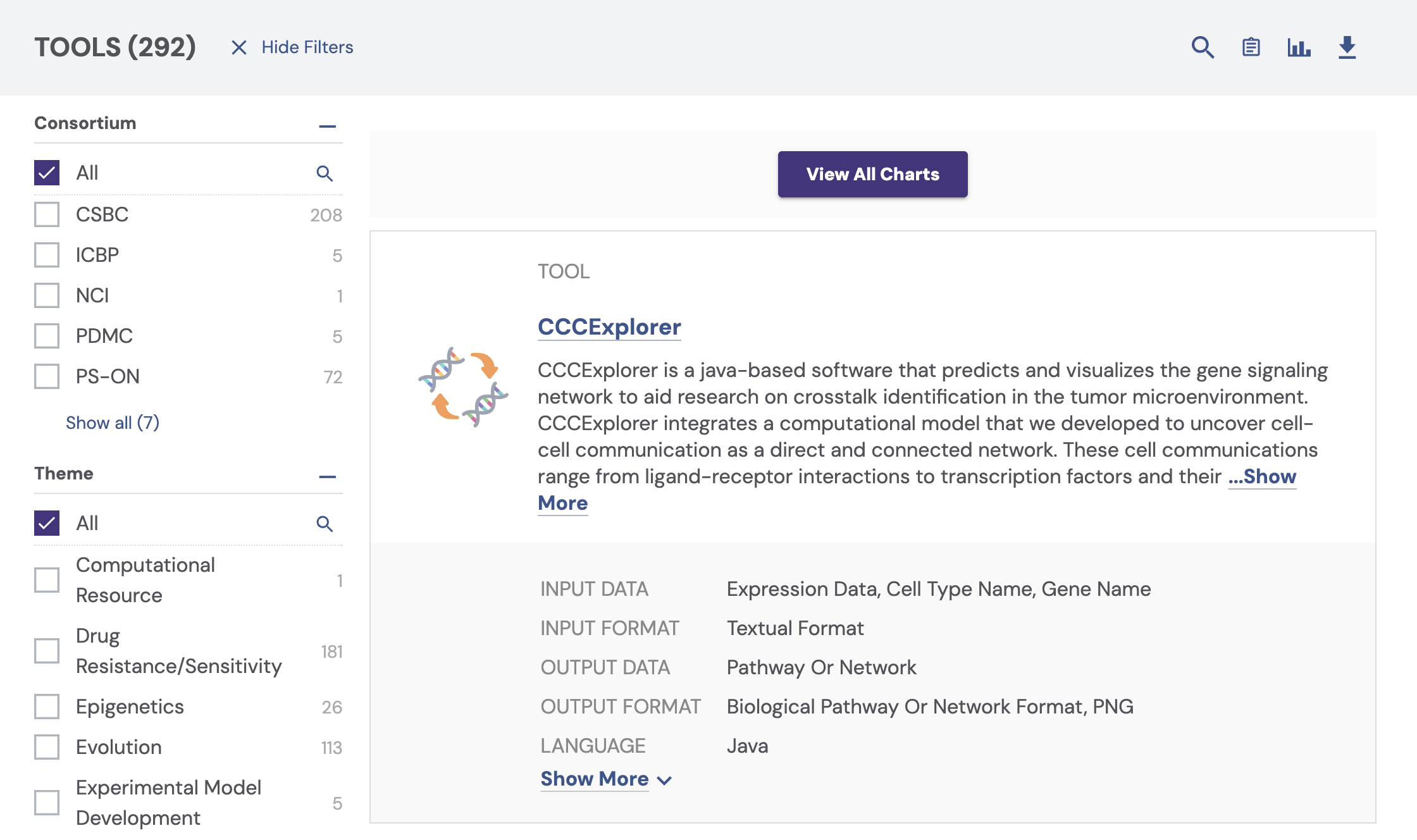
    1. Navigate to the Tools module.

      Screenshot 2025-03-14 at 12.16.38 PM.png
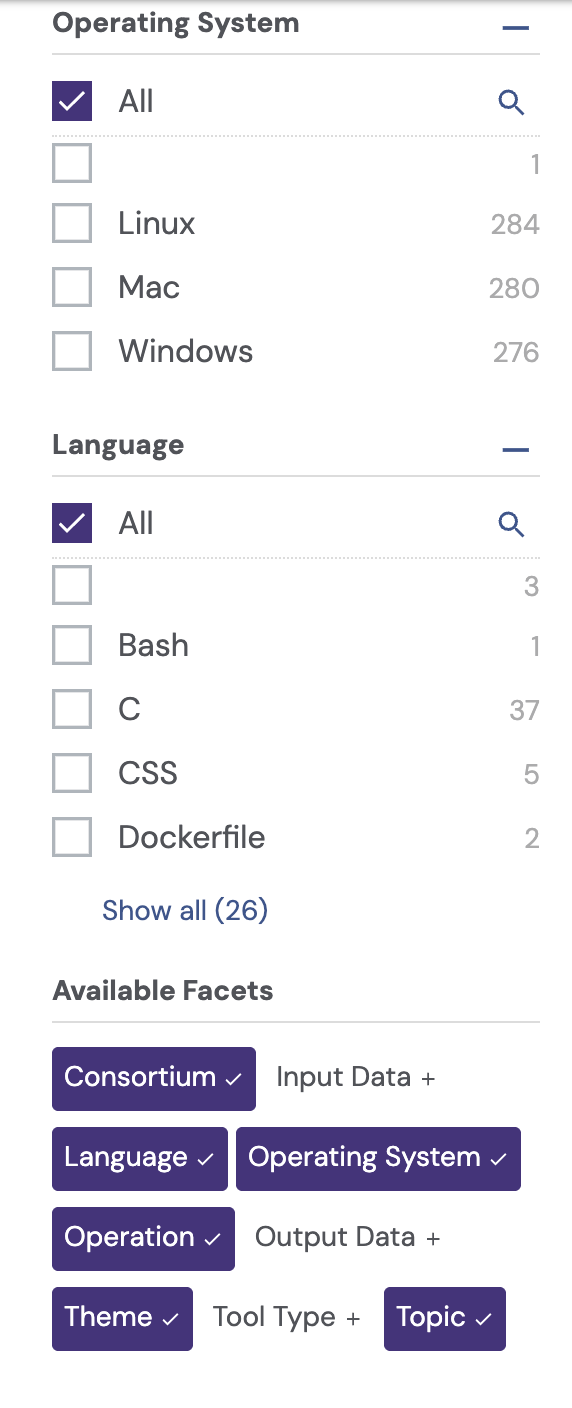
    2. Scroll down and select desired filters based on your needs.
      Screenshot 2025-03-14 at 12.17.52 PM.png
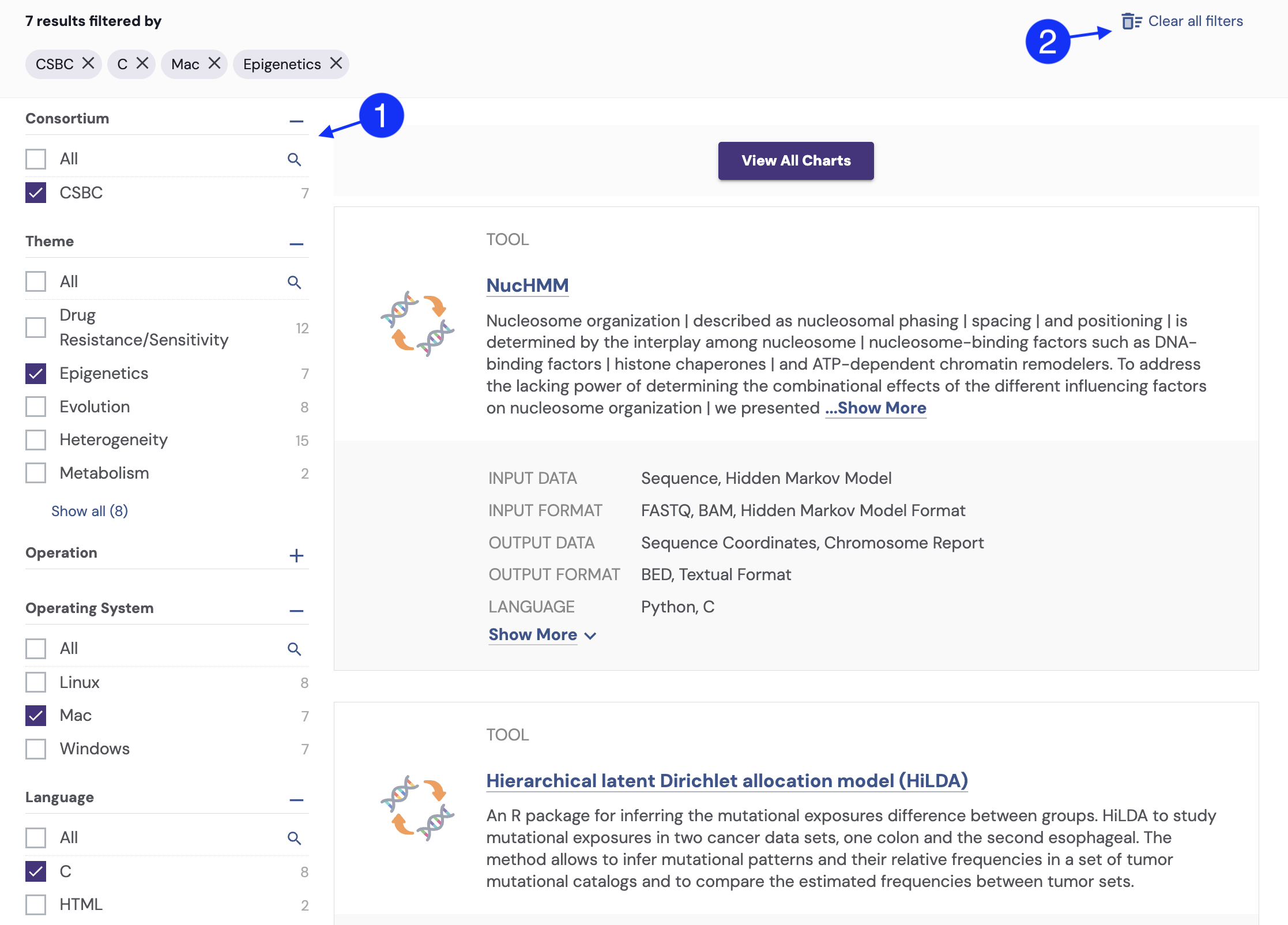
    3. Toggle the options including Themes, OS, and Languages (1).

    4. For a full reset of filters, click “Clear all filters” (2).
      Screenshot 2025-03-14 at 12.20.20 PM.png
    5. Tools that meet your specifications update in real time, allowing for a highly focused exploration of tools that may support your research.

  3. Category-Specific Filters

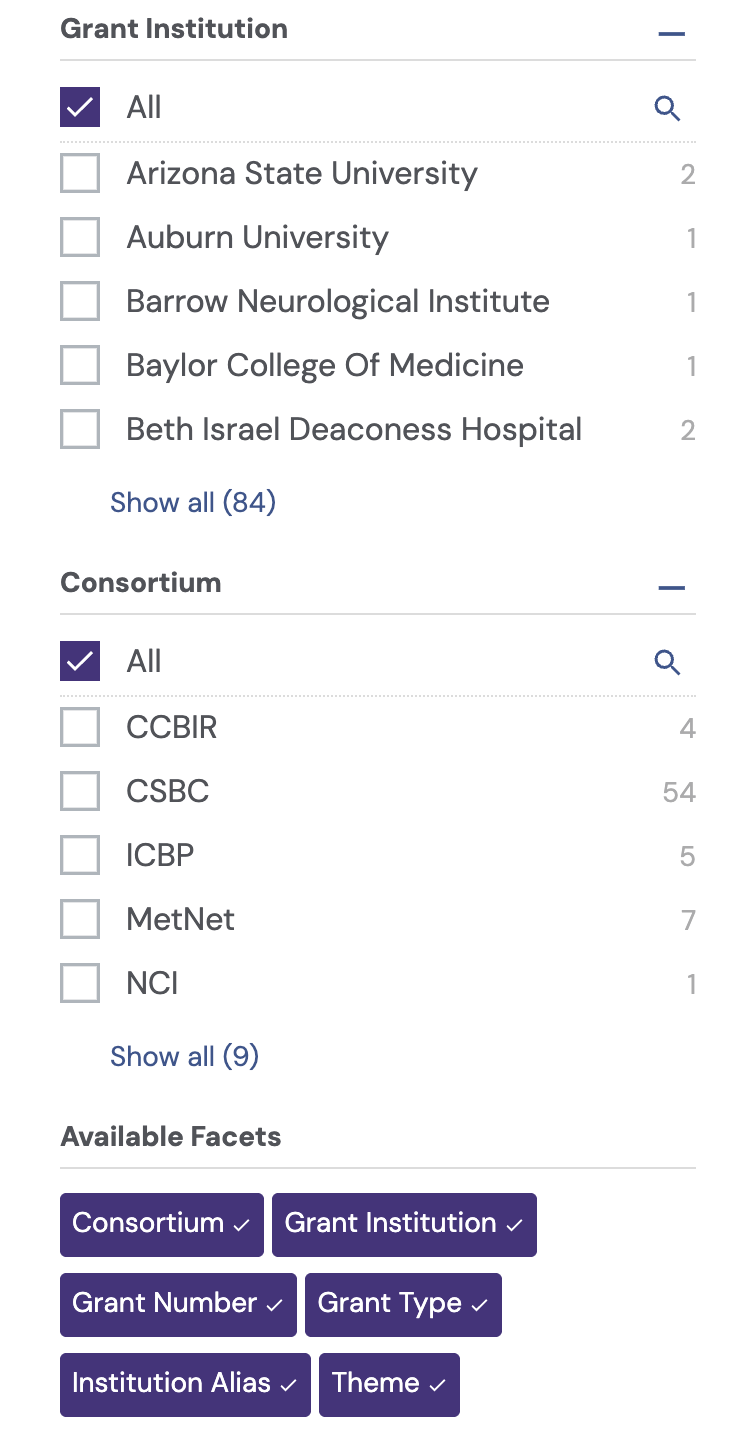
Research categories include specific filters. Category-specific filters include:

Grants

AD_4nXeK3ty61mG8thWv0SrrXWwxuAaBw3U7810HztEFwHIExmuD7oiCrcYf2HiV6eQpaA7RmDt5VOYLJ0y45VqdwaI7CipvqtNXetWErwLx1nj2UuF2pHVR7Fd57_3kZ4GMjEw0d9wRLg?key=BXXE4yBplNqGDEObqX-_qYeY

People

AD_4nXcD9UrZZP_nXvFoSNiMuuHkBybx2erXDvhwWsOrylKyXULJuc1OFQV5-ZsHqcRQfluguIZr-CAMhGNFY7cJjOUIsBTOCPnTyNY7sjeiH9rVQ1NIpTAc4ebFfgg4gF_vaxyjiE0TKw?key=BXXE4yBplNqGDEObqX-_qYeY

Publications

AD_4nXfLaKDbabPdHf-gVlBMpEyt3bOMmw3GCegXoj67zm90yFCIBcO69RRb96bEIXdpBVRvbq2UfrgIAyZyMPUuRXxjQJUed7UbvSWndyRh2t_mtD8Iam605Uz8ihgYlKz8TaqO3JfNqw?key=BXXE4yBplNqGDEObqX-_qYeY

Datasets

AD_4nXfvkwqqvJ6jVNzYXLM1DQyU5gXjAKhtgXJDE8HzxZLIbyozHA7VrNsuE-inzwYohx_IXEqoNkL7aEndnJkrzHy3YXkDIN-g5aXjeLMMUPEeO5Rt2hUrUD2MQfcxnzvl3_6OwhU2SA?key=BXXE4yBplNqGDEObqX-_qYeY

Tools

AD_4nXf1fnOjsUT8fmu2tBYDvtoY1qK66JRZNn9oysgV6BXplJc19XAjrLcNAsRJViMvKUGIshCXnndQl7v8J3rCwhNeuGsVz9A1mXh7Iq8f-AOjqqqTf9ebzVdPcRCUgbxCb8r5nqcfog?key=BXXE4yBplNqGDEObqX-_qYeY

Educational Resources

AD_4nXfQHxJXwMo4BBmyKENn5QJ5kN7dxE8cKPmSQ4Y9TBLGRRWuROzP0qqej2Obzr6rtnDl8SGsTOL_F7tUzpkgWyYvrUz9HBB-wfpIbChoXJq0_rDTfotSoID6ClGFC-W_-m7aYYaxYg?key=BXXE4yBplNqGDEObqX-_qYeY

Charts

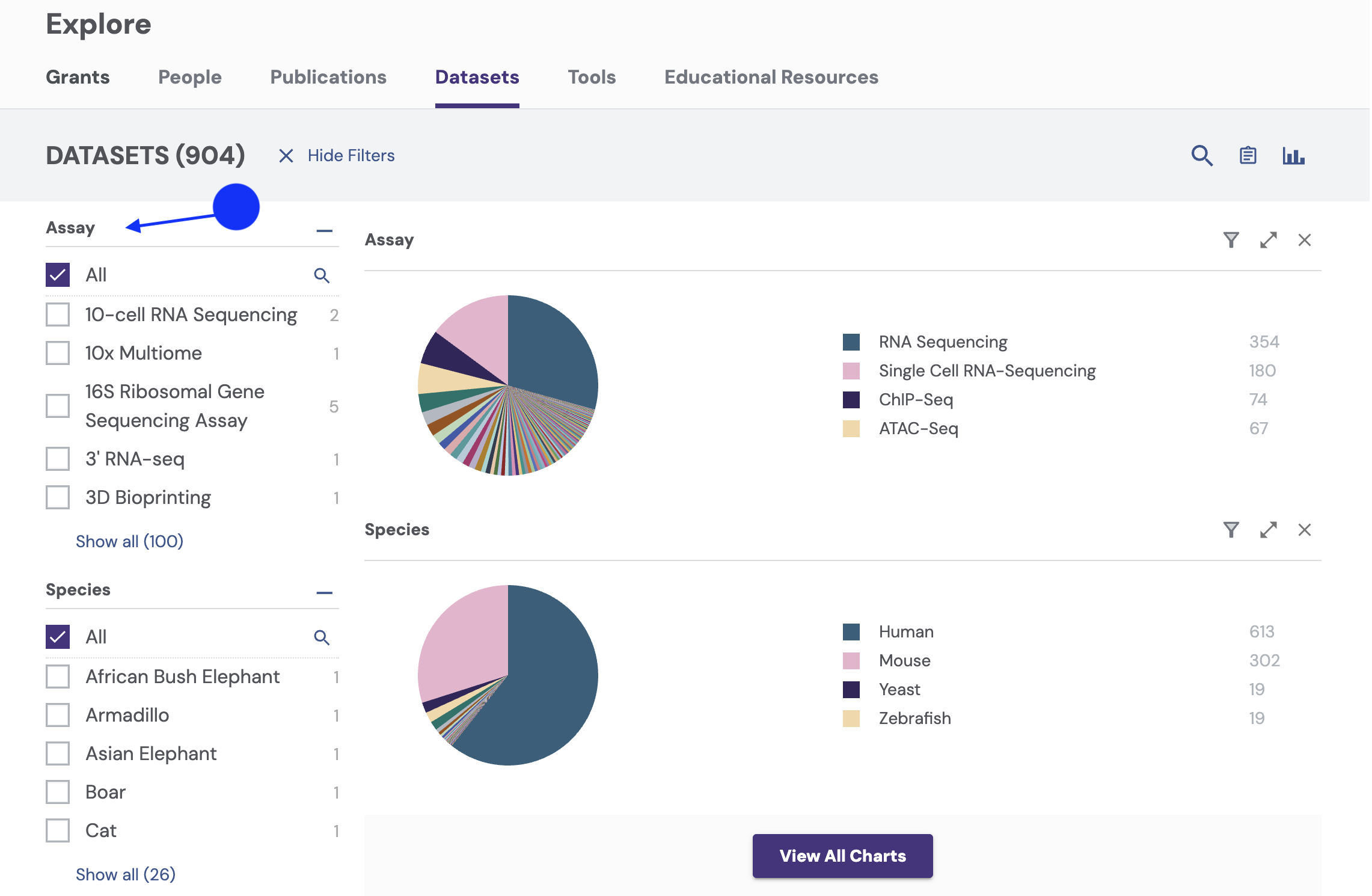
Charts provide an interactive way to visualize resources available on the Portal. You may select resources by clicking on the pie charts. Charts can also be used to visualize research data to support trend and distribution analysis. They provide insights into grants, datasets, publications, and tools.

AD_4nXeTfWWqDnAuMV3B1frQKDYu4pqU9NgPD23_vLJnXZ8t2_-WkrjtttUgkx2j5L-qkAR6oih77HRes3S9h-yqIDgQqH8WxWsxduSw1-1Ixfkvz2udseWNHEAof7mI1LHh_ceLskQE?key=BXXE4yBplNqGDEObqX-_qYeY
  1. Accessing Charts:

    1. Click a section of the pie chart to filter results.

      AD_4nXcy02egC2gmQ0Y0m5vllXLwN3bTipM3BDsfF4qB5xy72nrWCEnOqcDsIQ_r-OrAXlH9cE4Fbc_PZYJgkz1FVQDnkcijDJ9eawxZN7bKkMnmdgkelnCSpEg_fUUkvPHyIw6_er5qnA?key=BXXE4yBplNqGDEObqX-_qYeY
  2. Interacting with Charts: 

    1. Hover over chart elements to see detailed values.

      AD_4nXdN2jh4GL2p4FrekZO2KfkQ-qEM-WzHANqjCOTZed1r7hzeFPETI-k9Y5qFJhjUfNXEhiARCv0mp33i8ysok2Lhat3EspWxdzMyCD-OVvSD_4fBuFigokI-lJGgDyhzwk5FQ7Q0?key=BXXE4yBplNqGDEObqX-_qYeY
  3. Click on chart sections to filter results.

  4. To reset selections, click the (X) button in the visualization panel or use the "Clear All Filters" option.

    AD_4nXc567YY_8nXPBCM880NSKj_YYygWODLyqsdg3zRdwDsSpnAT5y7Rn26DjbPO_uX3kXfOhrFQEOTdA_4wTzS1IvtsmdSbVc2ntTysK119atJtA6DAcVKQ6eX6E7-h473u-6QAe08?key=BXXE4yBplNqGDEObqX-_qYeY

See how to narrow your search in seconds with this short demo of our interactive chart filters.

Learn how to download data for offline use in Download CCKP Information.